Shirohane's Contoller for Windows
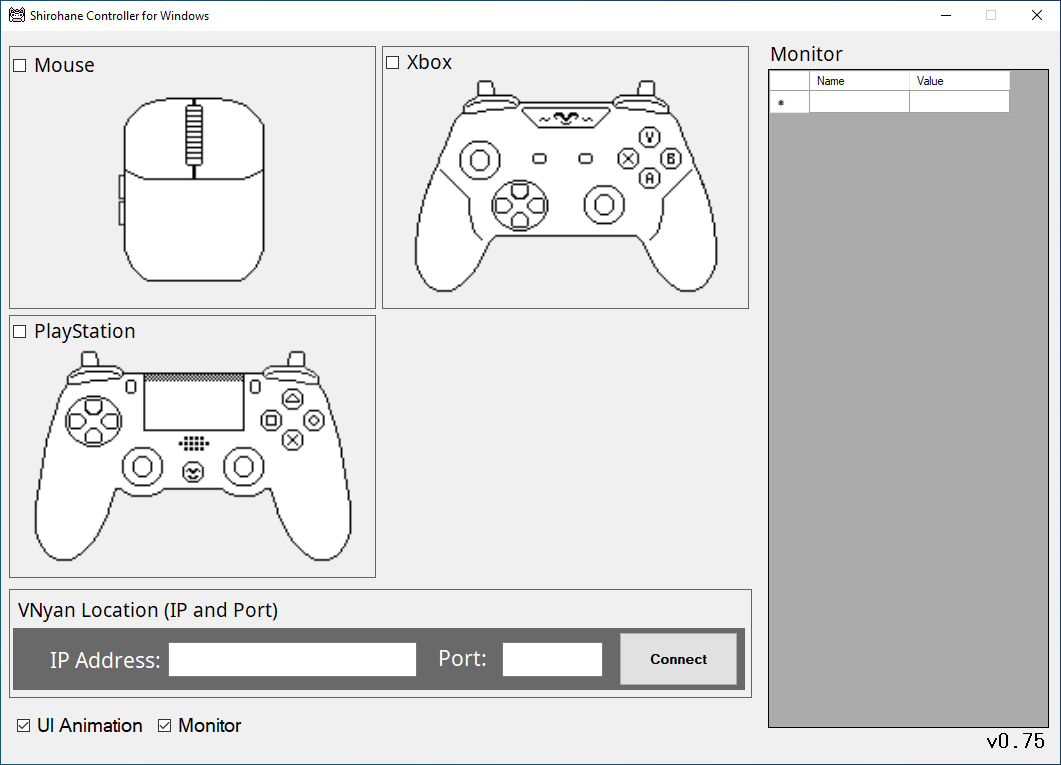
The “Shirohane Controller for Windows”, is a desktop client which is designed to installed on the gaming PC. Like the VNyan plugin, you can chose to activate the Mouse, Xbox or PlayStation 4 and 5 controllers. Once activated, mouse, Xbox or Playstation parameters are monitored and are sent across your network to VNyan.
- Open the “Windows Defender Firewall with Advanced Security” application. Create a new incoming rule, adding a firewall exception for the “Shirohane Controller for Windows” running on your private network. Allow transfer of both incoming and outgoing controller data to VNyan.
- (Optional) Install a Xbox controller emulator such as DS4Windows to support Switch or Generic controllers.
- Start the “Shirohane Controller for Windows” application, and toggle the mouse, Xbox or Playstation controller checkboxes to start monitoring the connected input devices.
- The UI Animation and Monitor checkboxes can be activated to display the collected input. These are visual effects and do not have any effect on sending the controller input across your network and should be disabled to optimize performance.
- Specify the IP and Port number of the machine running VNyan. The IP and Port Number can be copied directly from the VNyan receiver. Connect to the vNyan plugin by pressing the “Connect” button. If the connection is successful, the button will change to “Disconnect” and the Red status circle will turn Blue.
- A settings.ini file is loaded on startup and saves the current settings when the application is closed. The following settings can be modified using the settings.ini file.
- The “Shirohane Controller for Windows”, minimizes to the system tray, allowing the app to run in the background without taking up space in the task bar.
| Settings | Description |
|---|---|
| ReceiverIP | VNyan IP address |
| ReceiverPort | VNyan Port number |
| AutoConnect | Attempts to connect VNyan when the client is started. (True or False) |
| AnimationUI | Animates the Controller or Mouse image using input parameters (True or False) |
| Monitor | Displays the Controller or Mouse input parameters (True or False) |
| Debug | Displays debug information on the UI (True or False) |
| SH_mouse | Toggle the Mouse (True or False) |
| SH_controller | Toggle the Controller (True or False) |
| SH_controllerPlayer | Player input number (1-4) |