Shirohane's Controller for vNyan
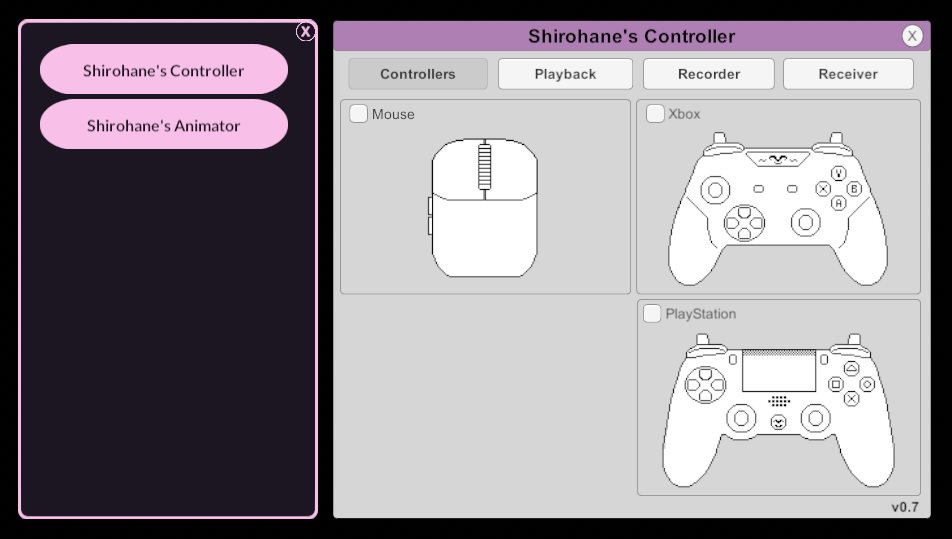
"Shirohane's Controller plugin" converts mouse, Xbox, PlayStation (P4 and P5) or Steam Controller (1.0 and 2.0) controller input to VNyan parameters. Activate the controller plugin using the included UI or node graphs.
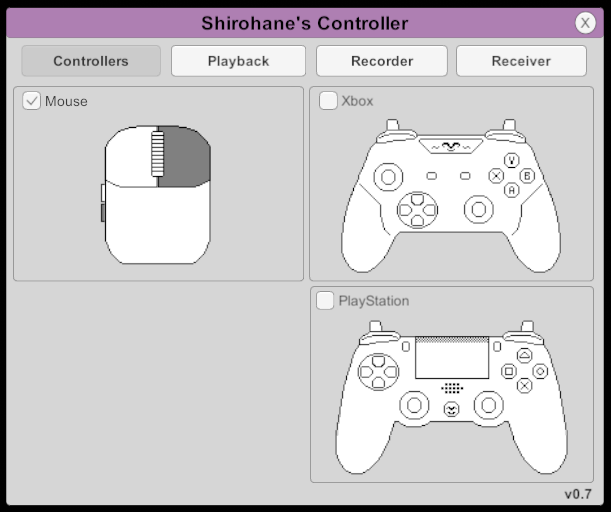
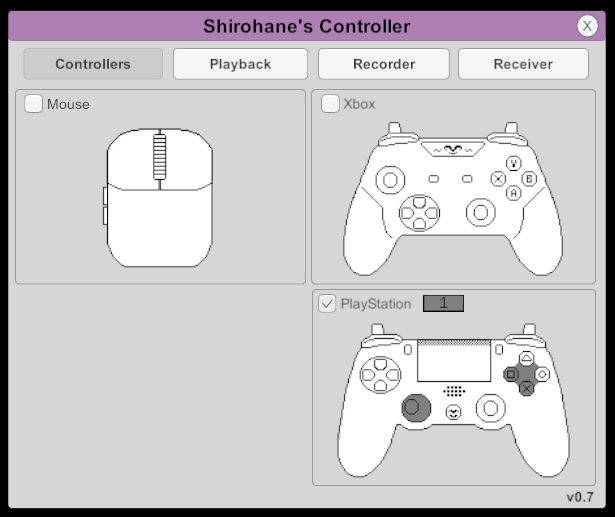
- Click on the “Shirohane’s Controller” plugin to open the UI interface. Use the toggle buttons to activate the mouse or controller.
- Check if the plugin works by first activating the Mouse. If connected, clicking your mouse buttons or using the scroll wheel should cause the mouse image to light-up with each input.
- You can do the same with a connected xBox Controller, pressing buttons, d-pad, sticks, triggers and bumpers should cause the xBox image to light-up.
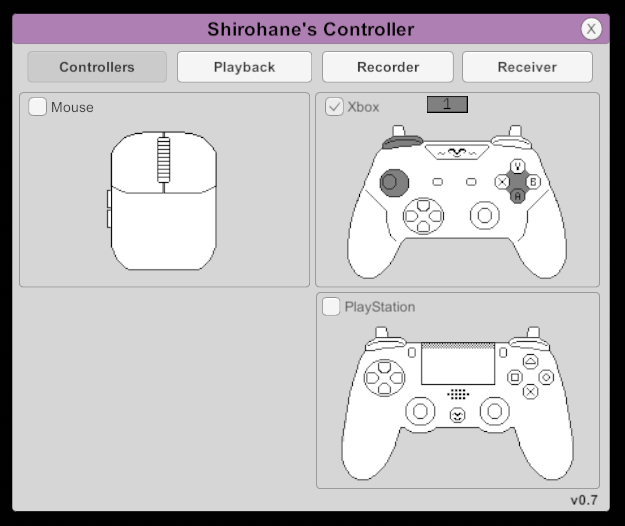
- The controller plugin recognizes connected PS4 and PS5 Controllers, pressing buttons, d-pad, sticks, touchpad, triggers and bumpers should cause the PlayStation image to light-up.
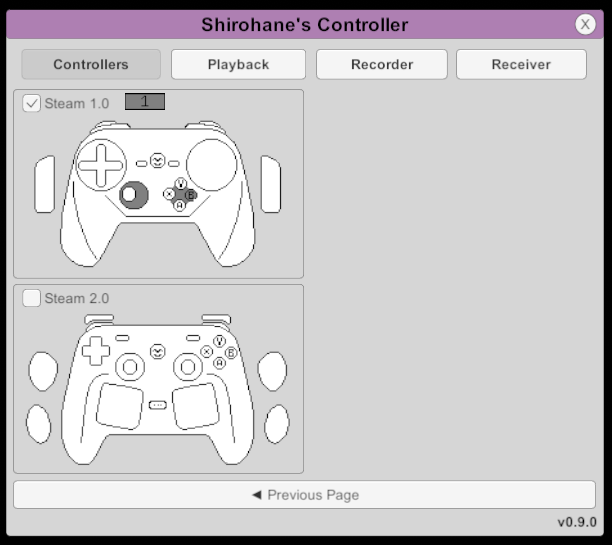
- The controller plugin recognizes Steam Controller’s 1.0 and 2.0 connected using a wire or through the official wireless puck, find these controllers on the "Next Page ▶︎" of the plugin. When activated the Steam controller will send a haptic pulse and disable Lizard mode.
- If multiple controllers are connected numbered buttons (1-4) will be displayed, which allow you to swap between the connected controllers. (TIP: use a Xbox controller converter such as ds4-windows to enable compatibility with Switch Pro or Generic Controllers.
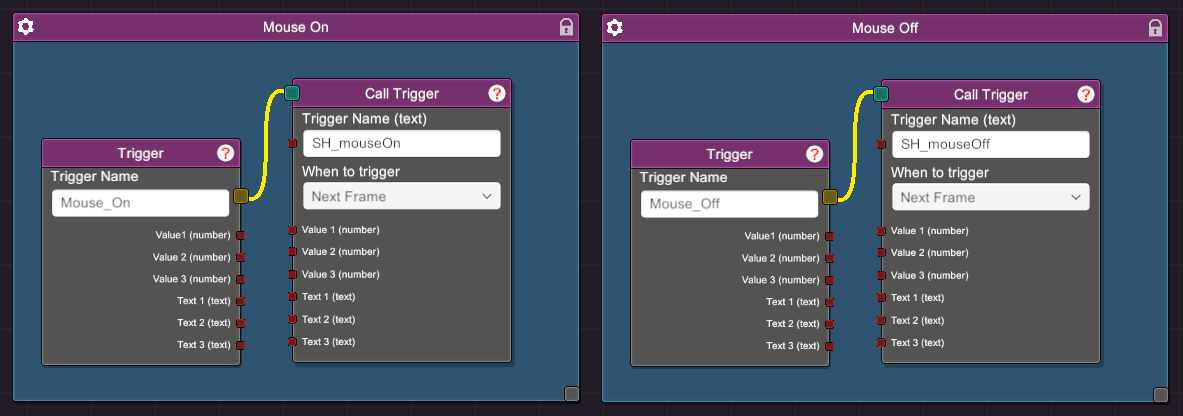
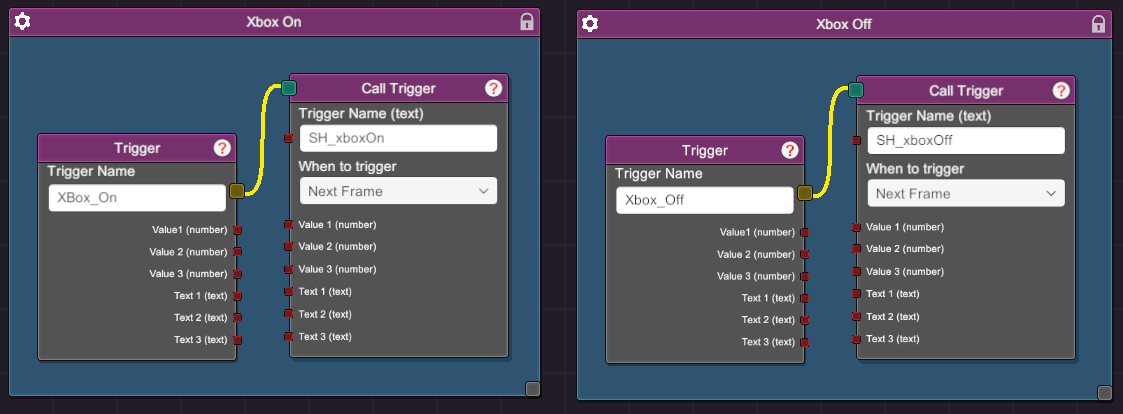
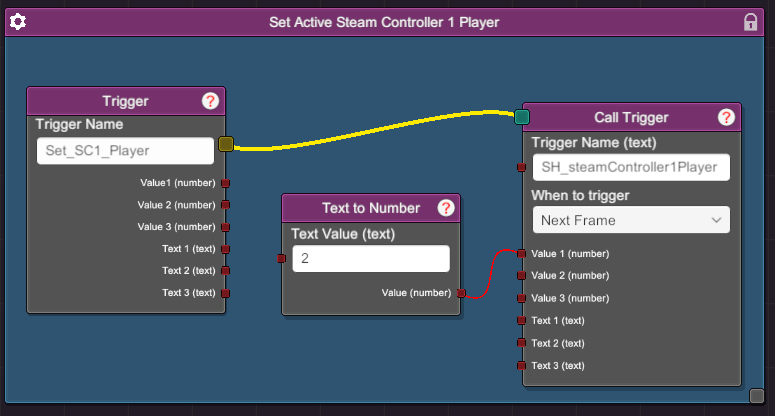
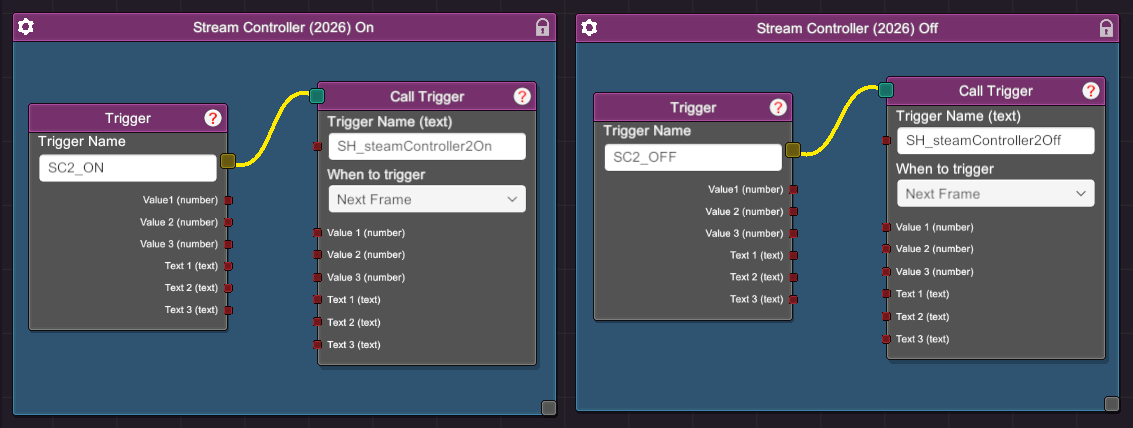
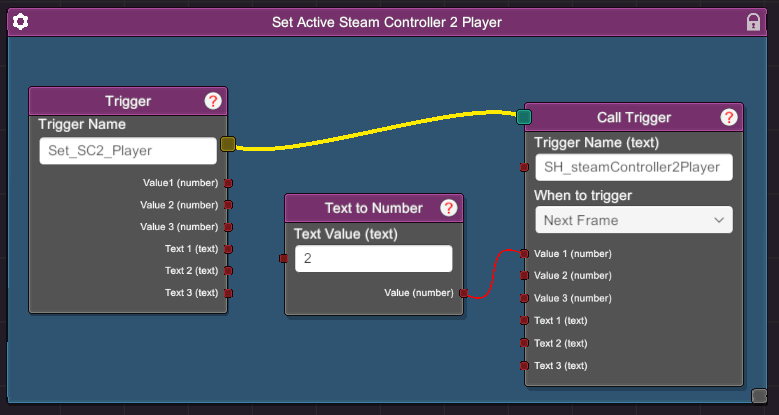
- Node graphs can be used to activate and deactivate the controller/mouse and swap between connected controllers.
- Turn on the Mouse using the SH_mouseOn trigger. Turn off the Mouse using the SH_mouseOff trigger.
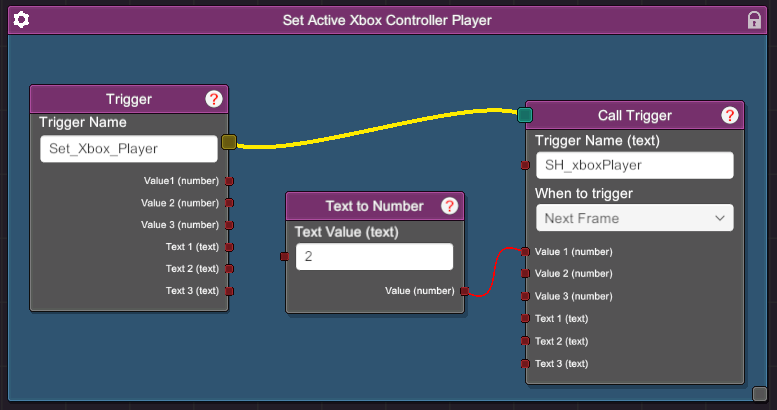
- Turn on the xBox controller using the SH_xboxOn trigger. Turn off the xBox controller using the SH_xboxOff trigger. Swap between connected xbox using the SH_xboxPlayer trigger, indicate the player number using the “Value 1 (number)” field.
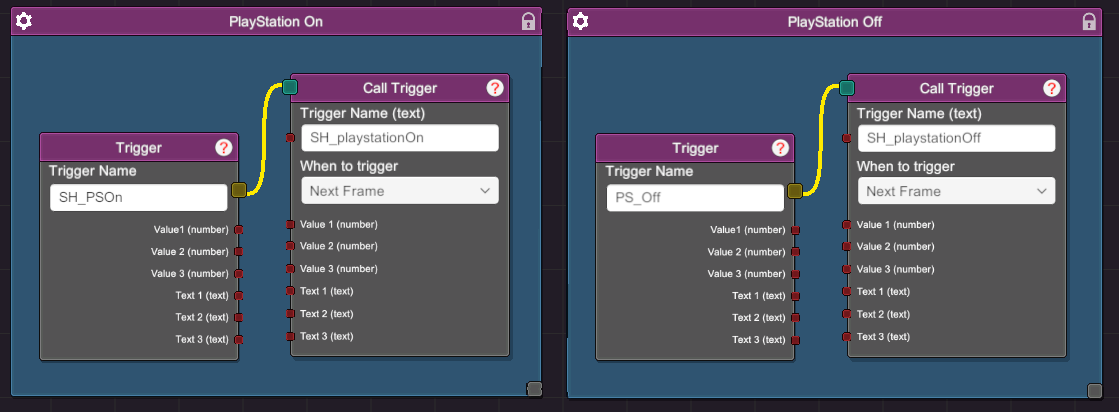
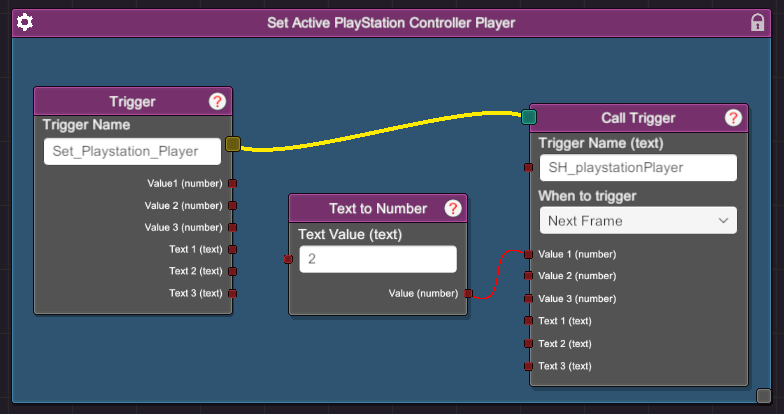
- Turn on the playstation controller using the SH_PSOn trigger. Turn off the playstation controller using the SH_PSOff trigger. Swap between connected playstation controllers using the SH_PSPlayer trigger, indicate the player number using the “Value 1 (number)” field.
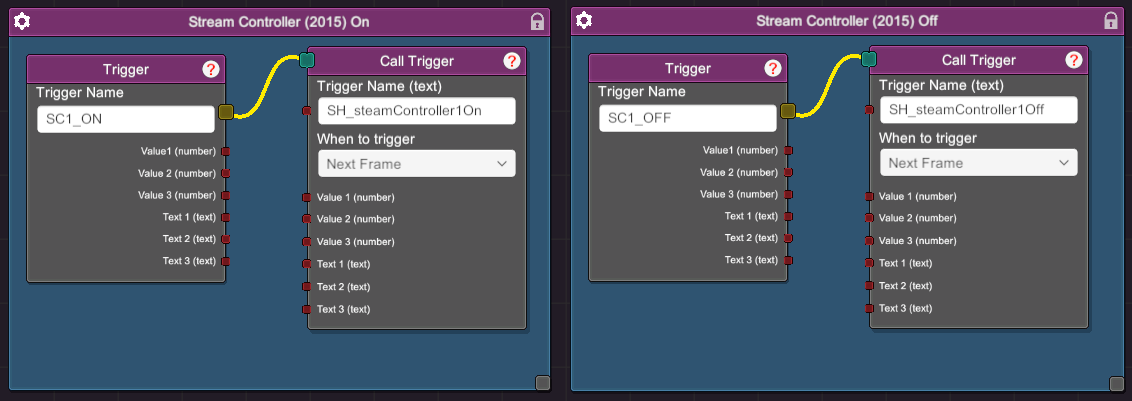
- Turn on the Steam Controller 1.0 using the SH_steamController1On. Swap between connected Steam Controllers using the SH_steamController1Player trigger, indicate the player number using the “Value 1 (number)” field.
- Turn on the Steam Controller 2.0 using the SH_steamController2On. Swap between connected Steam Controllers using the SH_steamController2Player trigger, indicate the player number using the “Value 1 (number)” field.