Users with duel PC & console streaming setups will not be able to connect their controllers to VNyan directly. However you can still use the Shirohane controller plugin to add controller or mouse avatar animations to your streams using parameter playback and recording.

You can open SH_Playback files using the playback interface. Load a SH_Plackfile by clicking the Folder icon. If the file is loaded, the file path, metadata and playback buttons will be displayed.
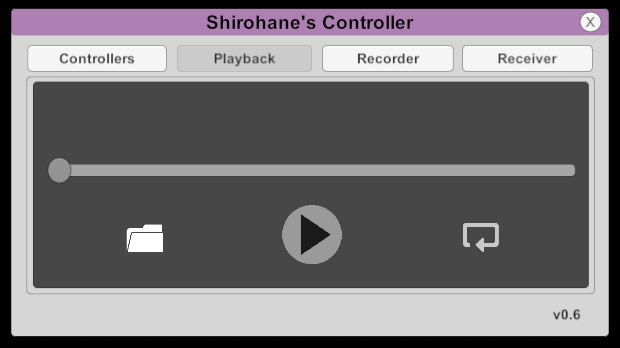
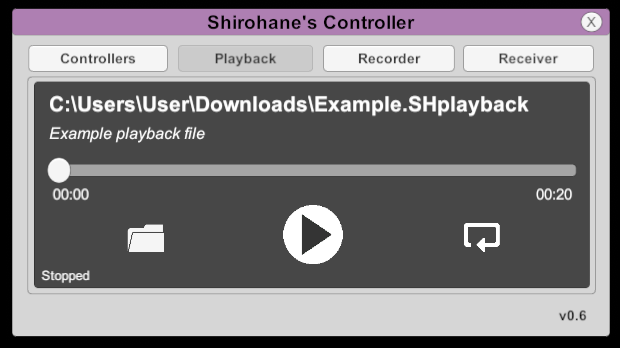
Activating the playback mode will disable any connected Xbox, Playstation or mouse input. Using the playback UI, you can control the parameter playback in the following ways.
- Use the play button to start the parameter playback (enables the pause button.)
- Use the pause button to pause the parameter playback (enables the play button.)
- Jump to a specific frame by using the seek bar.
- Control the playback mode; play the frame data once or loop the frame data.
Example SH_playback files which playback mouse and Xbox VNyan parameters are included for you to test the player functionality.
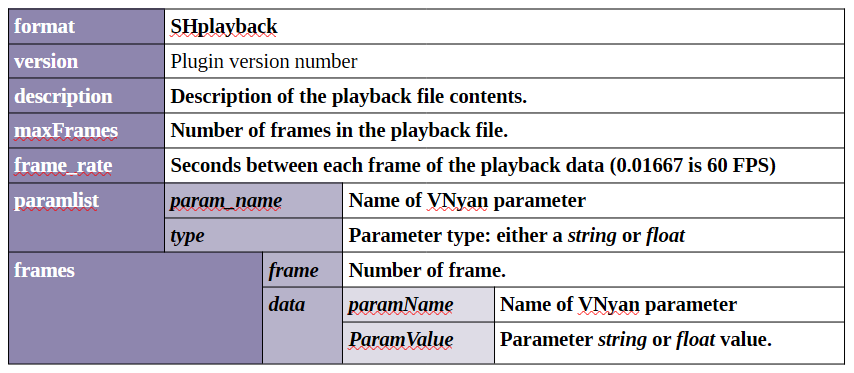
The Shirohane controller plugin supports loading and recording SH_Playback files, which are human-readable JSON styled files consisting of:
- Metadata (describing the contents, number of frames and playback speed)
- A parameter list (a list of VNyan parameter names and their type)
- Frame data (a frame number and the list of updated VNyan parameters)
The contents of a SHplayback file is described in the table below.
You can create SH_Playback files using the Recorder UI.
- Clicking the disk icon will open a file dialog for you to specify the file to store the recorded parameter data.
- In the description textbox, enter a description of the playback file.
- Enter the number of frames to record, by default the recorder will store a frame every 0.01667 seconds (or 60FPS).
- Select the parameters you want to record by clicking either the mouse or Xbox controller button.
Using the import button, users can load a SH_Playback file which will provide custom meta-data. You can customize the description, frame rate and even the list of parameters to record.
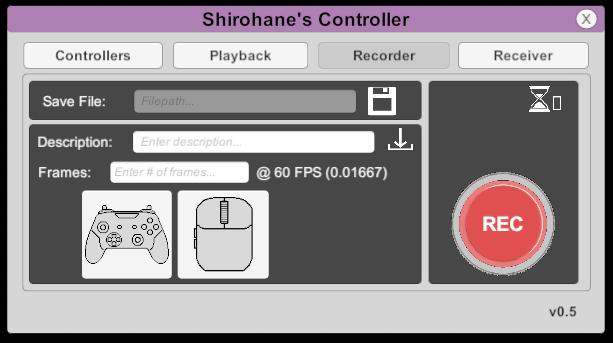
Click the hourglass button to set a 0, 10 or 30 second delay, which will occur before starting the parameter recording.
Clicking the REC button will start the delay countdown before recording each frame.
(Note: If you are using the parameter recorder to collect mouse or Xbox controller input, remember to activate the Xbox controller or mouse in the Controllers tab before starting the parameter recording. The recording plugin will record the parameters that change between each frame. If the parameters are not updating, no frame data will be recorded.)
Triggers can be used to control the parameter playback and recorder via node graphs.
Parameter playback can be controlled using the following triggers.
| Title | Trigger Name | value1 | text2 |
|---|---|---|---|
| Load parameter file | SH_loadRecord | Shplayback filepath | |
| Start playback | SH_playbackPlay | ||
| Pause playback | SH_playbackPause | ||
| Seek playback frame | SH_playbackSeek | Frame number to jump to | |
| Set playback to loop | SH_playbackLoop | ||
| Set playback to play once | SH_playbackCue | ||
| Turn off playback | SH_playbackOff |
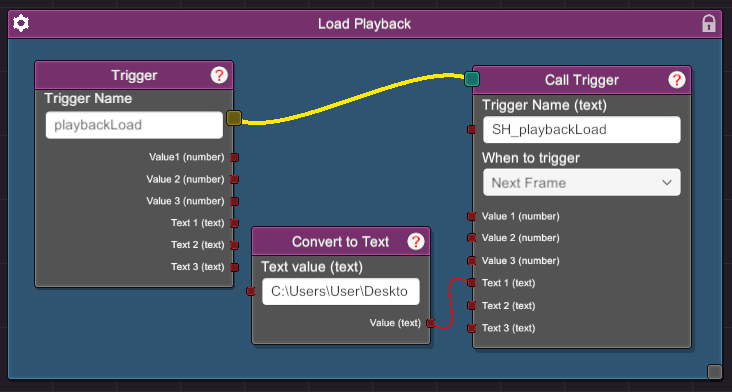
- The following node graph shows how to use the SH_loadRecord trigger to load a parameter file. In this example a “Convert to Text” node is used to pass the path of the SH_playback file to the “Text 1” trigger.
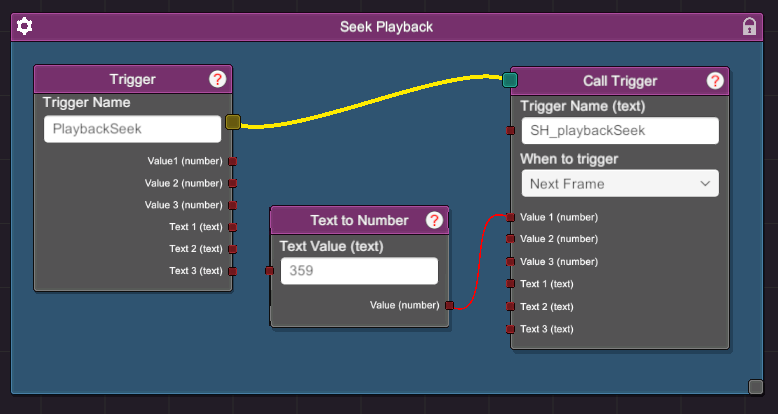
- Use the SH_playbackSeek trigger to move the playback to a selected frame. In this example a “Text to Number” node to convert 356 into “Value 1” of the SH_playbackSeek trigger. This will cause the Parameter Playback file to skip to frame 356.
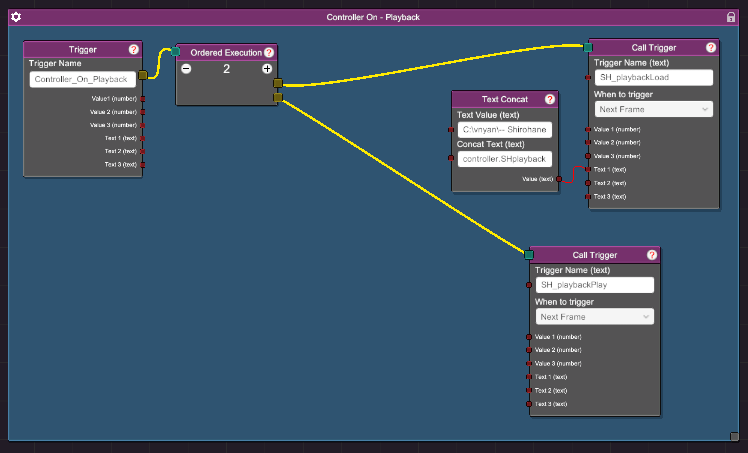
- Combine the SH_playbackLoad and SH_playbackPlay trigger to start the controller in playback mode. In this node graph, a playback file is loaded “SH_playbackLoad” and the parameter playback is started “SH_playbackPlay”.
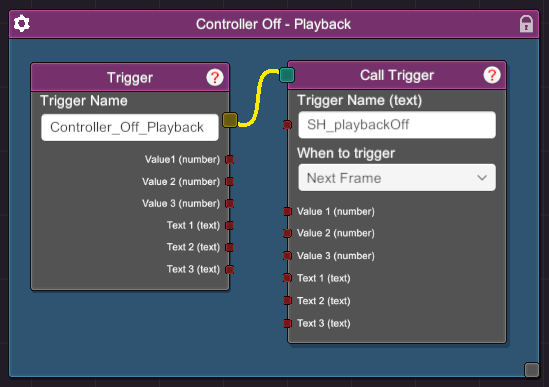
- Use the SH_playbackOff trigger to stop the parameter playback.
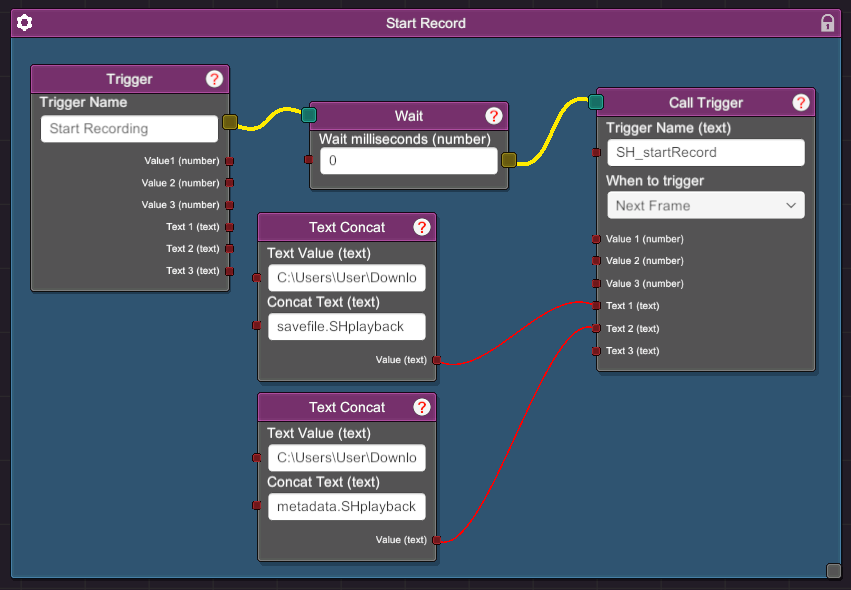
- The Parameter Recorder can be controlled using the SH_startRecord trigger. This trigger accepts two parameters: (text1) the path to the SH_playback save file and (text2) the path to the SH_playback file used to provide the metadata and parameter list.
The following node graph shows how the SH_startRecord trigger can be combined with existing VNyan nodes. In this example a “Wait” node is used to delay the parameter recording process before starting the parameter recorder. “Text Concat” nodes are used to combine the file directory and filename before passing the resulting paths to the “Text 1” or “Text 2” trigger.Title Trigger Name text1 text2 Start param recorder SH_startRecord Path to Shplayback save file Import metadata via a Shplayback file