Shirohane's Animator - Mouse Animator
In order to make use of the Mouse animator layer for your unique model, full customization of the animation layer will most likely be necessary.
The following step-by-step instructions will go through how to setup the Mouse Animation Layer highlighting key configuration features.
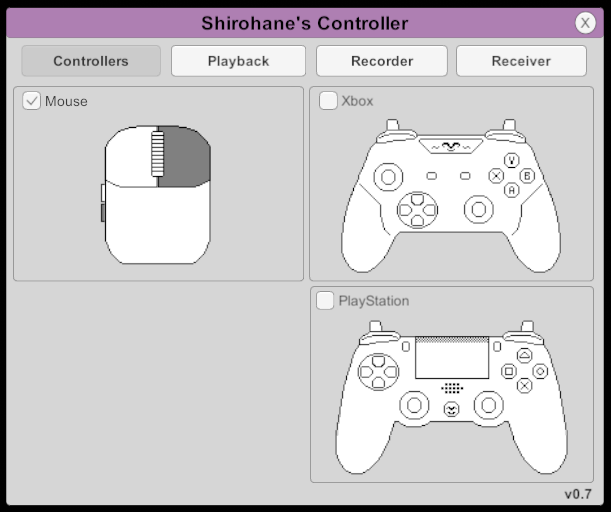
- Activate the “Shirohane Controller” plugin and start the “Mouse” to VNyan parameter converter.
- Load your avatar using the vNyan “Load Avatar” button.
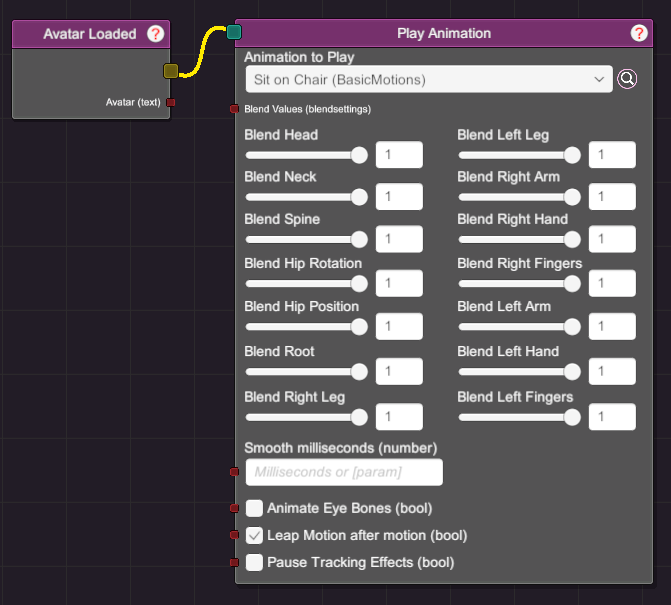
- (Optional) Start a sitting animation using the VNyan node graph. Connect an “Avatar Loaded” trigger to a “Play Animation” node. Remember to turn OFF “Pause Tracking Effect”, to enable tracking when the sitting animation is playing. Then activate the node, to move your Avatar into a sitting position.
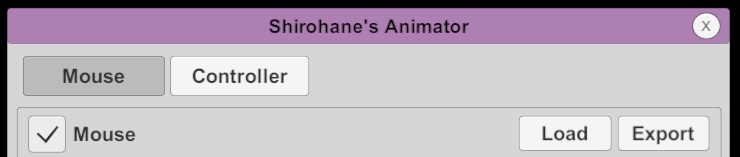
- Open the “Shirohane Controller Animator”. Click the “Mouse” toggle to start the mouse animation layer.
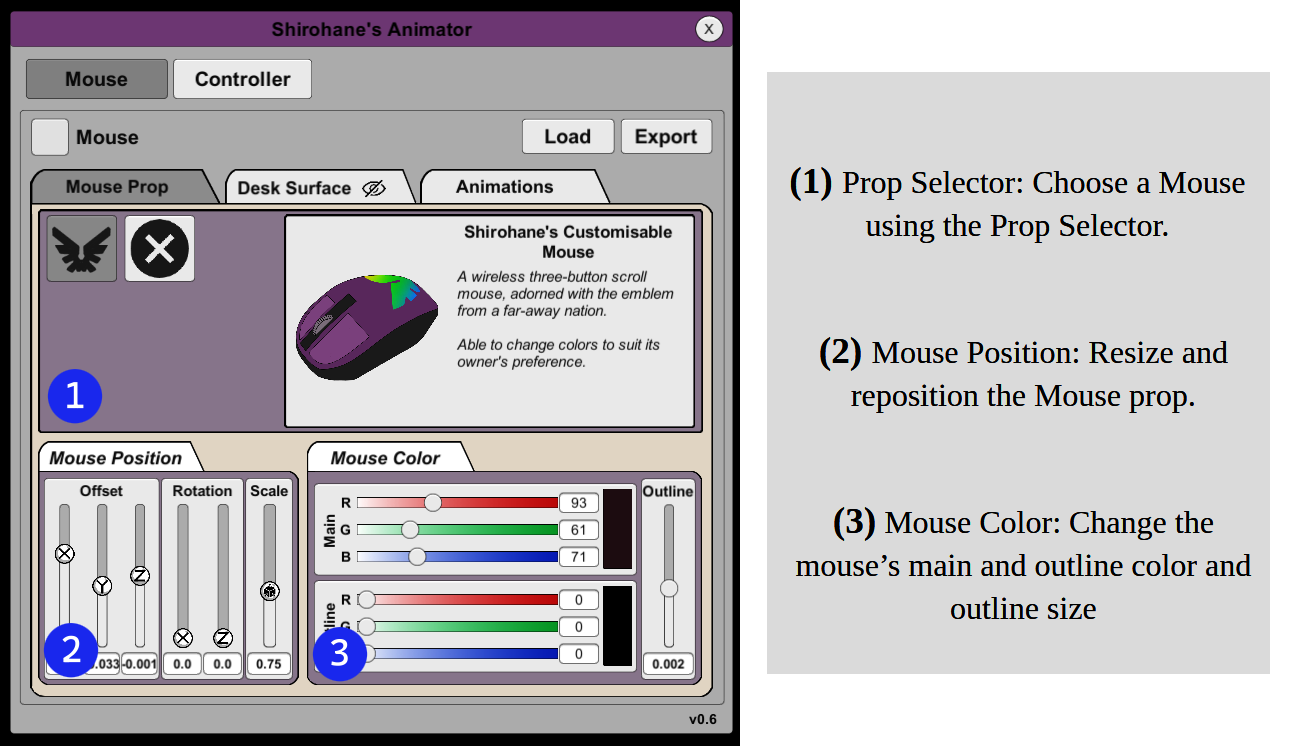
- Select the “Mouse Prop” panel. Using this interface, you can: select a Mouse Prop, control it’s position and color.
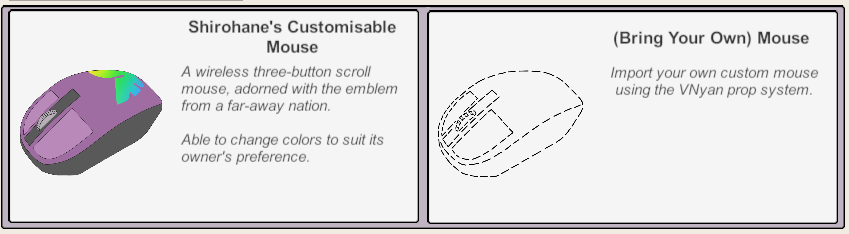
- Using the Prop Selector (1), choose a mouse prop. Available mice include:
- “Shirohane’s Customizable Mouse” is a three-button scroll mouse which can be re-colored.
- “(Bring your Own) Mouse” removes the animator mouse prop. See the developer manual for instructions to make your own vNyan mouse prop.
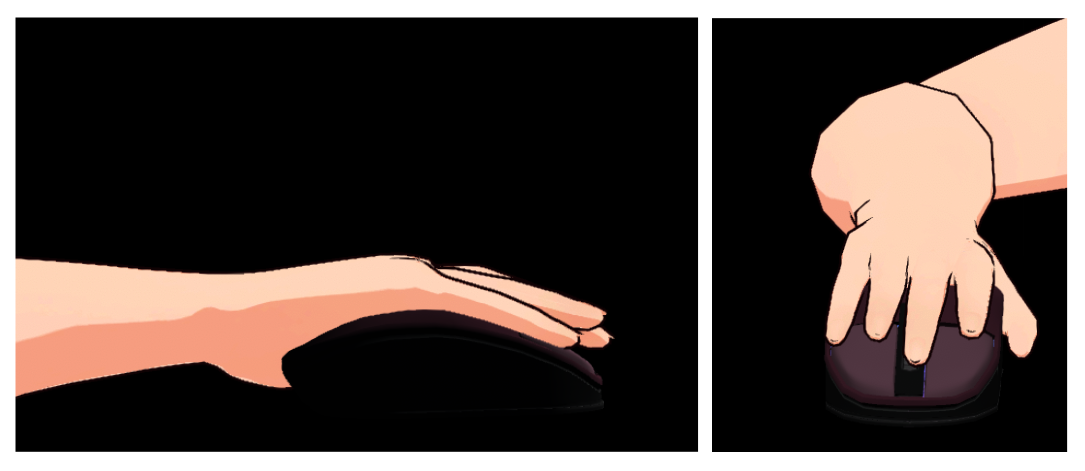
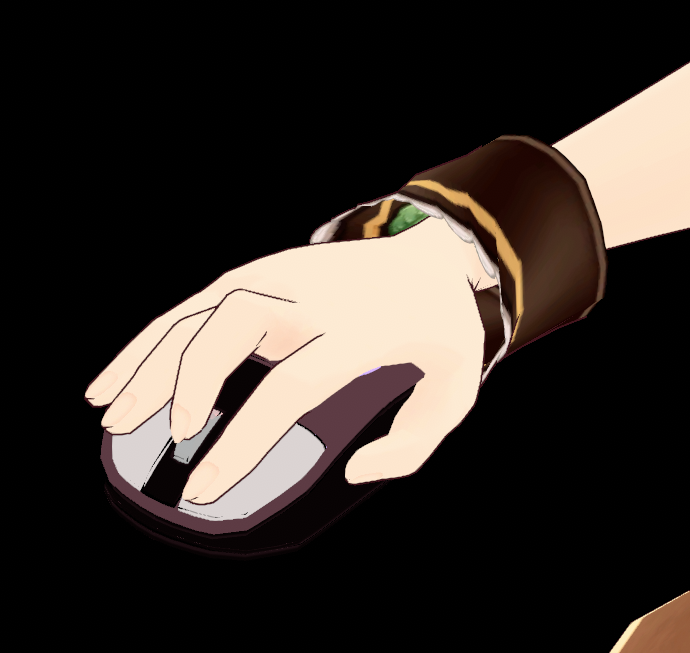
- Use the “Mouse Position” (2) control to resize and position the prop so the mouse fits under your avatars hand, and the scroll wheel is under your model’s middle finger.
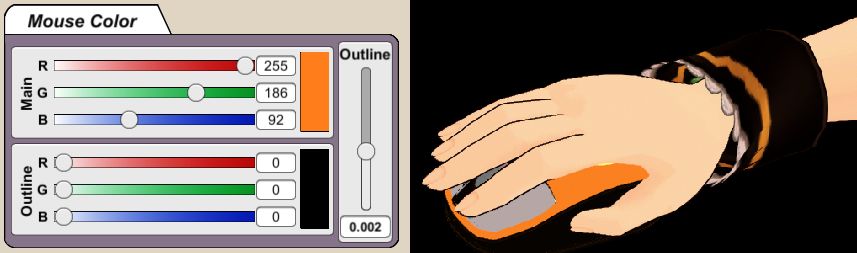
- Use the “Mouse Color” panel (3) to change the mouse color. Select the body and outline color using the color sliders. You can also change the size of the outline.
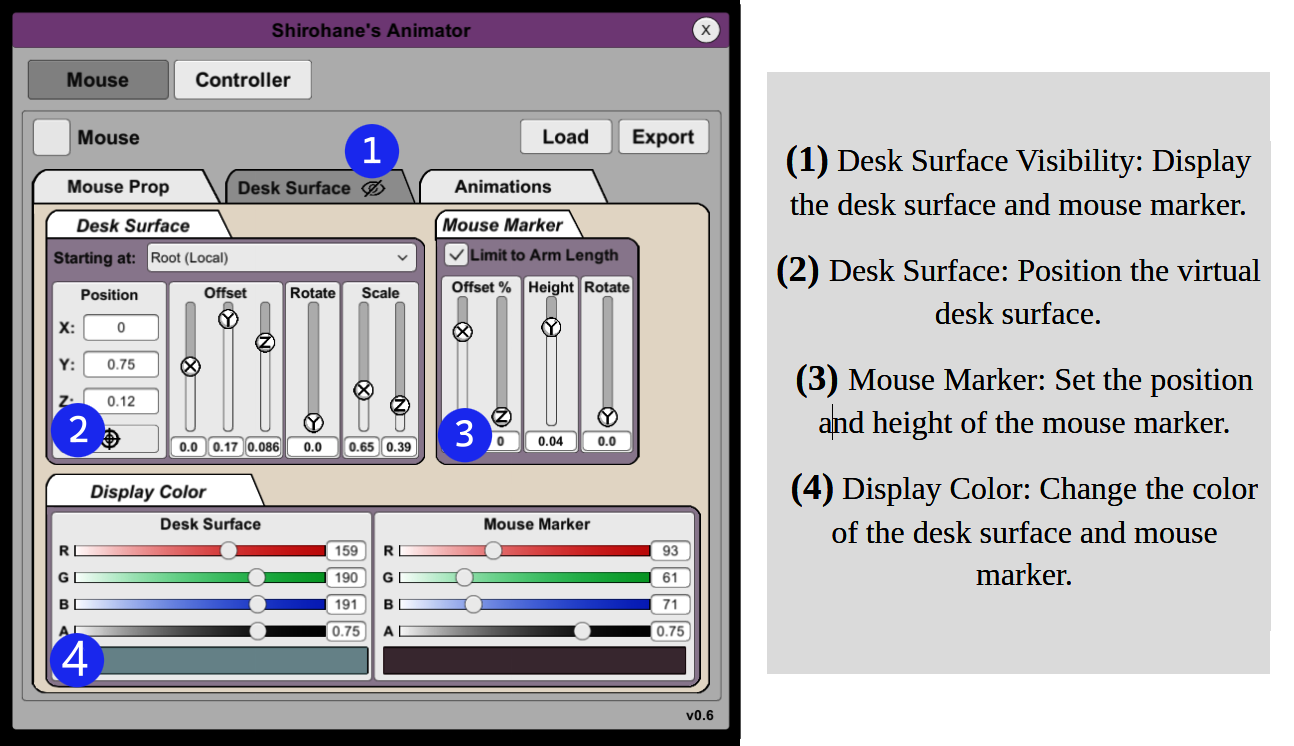
- Select the “Desk Surface” panel. Opening the Desk Surface settings will display a virtual desk and mouse marker.
By positioning this virtual desk on top of a desk object that exists in your vNyan world, you can create a usable desk setup for your chatting and gaming scenes.
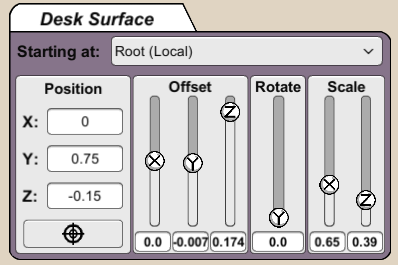
 Use the “Desk Surface” panel to define a virtual desk area.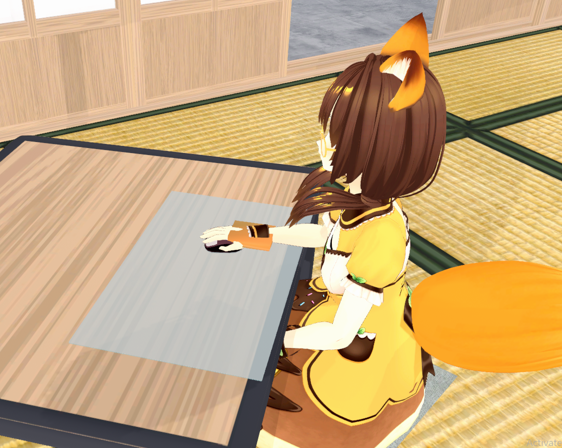
- Set the starting point of the desk. The desk can be either relative to the avatar (Root) or the World.
- Select “Root (Local)” if you want the desk to move with your avatar.
- Select “World” if you want to define a set area in your World where you want to use your mouse.
- Set the position co-ordinates of the desk. These co-ordinates are relative to the selected starting point.
- To simplify setting the world co-ordinates: move and rotate your avatar so that it is standing in front of the desk area in your world (using the vNyan avatar position settings).
- Click the target button to set the co-ordinates of the surface to your avatar position.

- Further adjust the desk surface orientation: by using the offset, rotation and scale sliders.
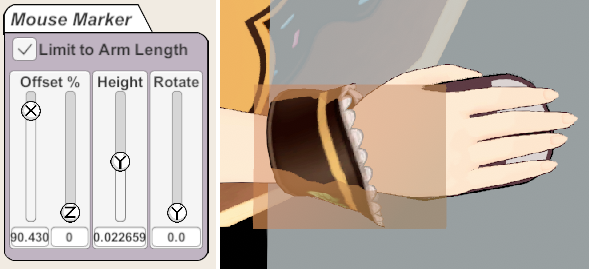
- Choose if you wish to limit the mouse marker movement to the avatar’s arm length. If this option is checked, the mouse marker will only be able to move within the area of the desk reachable by the avatar.
- Set the Offset % slider, controlling the starting position of the mouse marker on the desk surface. Note: Set the mouse to a distance reachable by the right hand, as these settings can be automatically mirrored for a Left handed Avatar in the “Animations” panel.
- Set the Height slider, controlling how high the mouse marker is above the desk surface. Adjust this slider so that the mouse prop and your fingers are raised above the desk surface.
- Set the Rotate slider: Controlling the rotation of the mouse marker. Set this slider, so that the avatar’s hand is holding the mouse naturally.
- Select the “Animations” panel. Using these controls you can mirror and customize the mouse animation and set animation transition times.
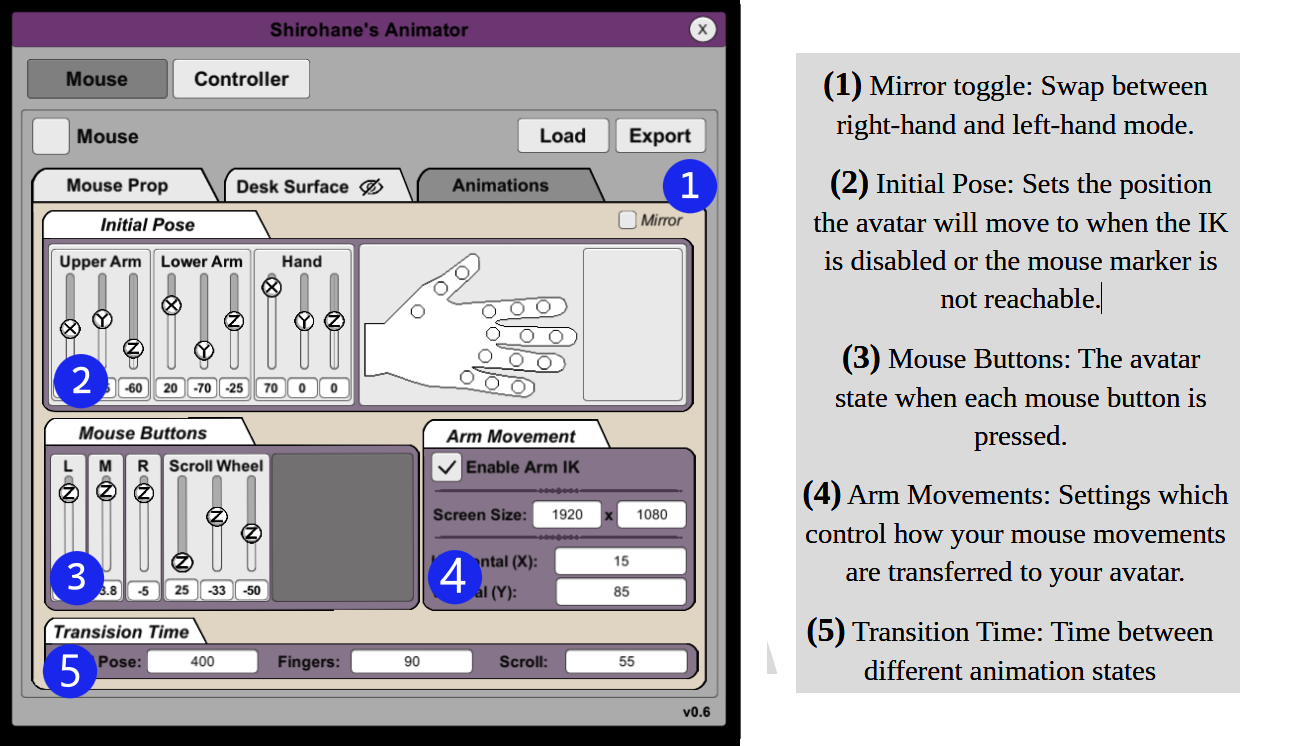
- Toggle the Mirror button to move the avatar between right and left handed mouse mode. Mirroring the mouse will also mirror the mouse marker settings.
- Set the “Initial Pose” of the avatar. The initial pose is transitioned to once the mouse animation layer is activated, but before the “Arm IK” is activated. If the Arm IK is disabled or the mouse-marker becomes not reachable, the avatar will move back into the initial pose.
- Set the initial upper arm, lower arm and hand positions using the sliders.
-
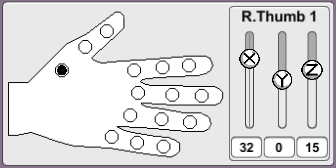
Set the initial finger positions. Clicking on each circle of the hand image will display controls used to manipulate each finger joint.
- Set the animations for the mouse button and scroll wheel using the “Mouse Button” panel.
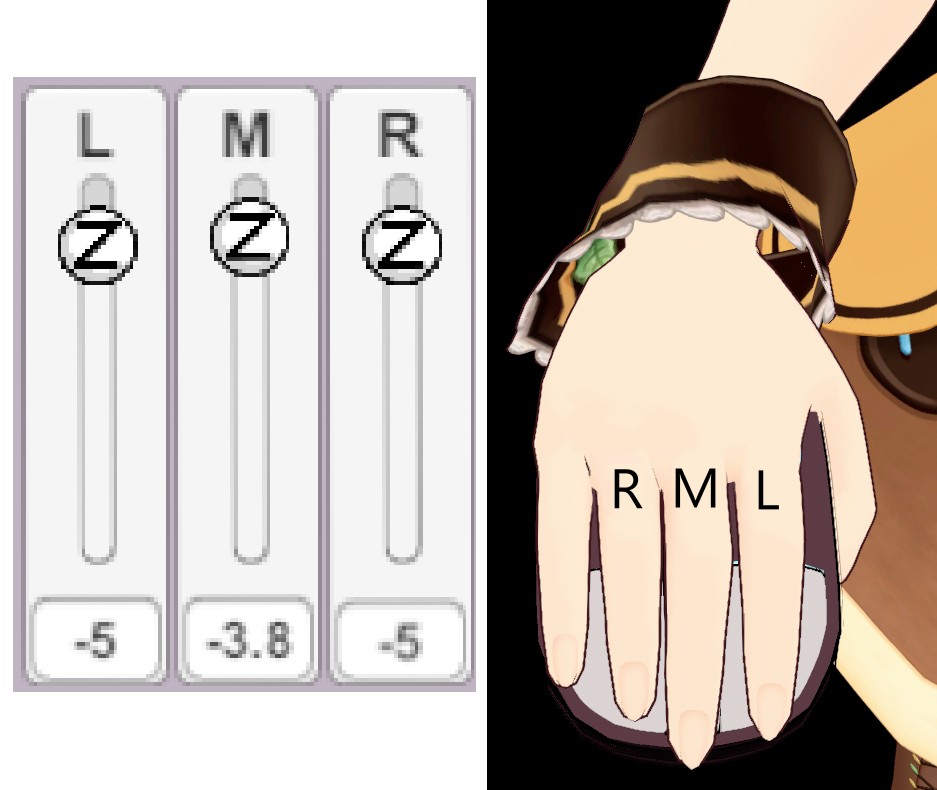
- Adjust the Left, Middle and Right mouse button clicking animations using the sliders.
- Each slider controls the finger rotation of either the index (L), middle (M) and ring (R) fingers.
- After adjusting the L slider, hold down the left mouse button, make sure your avatar’s index finger does not clip through the mouse prop. Repeat for each button on the mouse.
- Adjust the Scroll Wheel Animation.
- The three sliders control the middle finger rotations in order to create a fully raised scroll wheel finger state. As you scroll using your mouse, the mouse animator loops between the idle mouse state and this raised scroll wheel state in order to create a scrolling animation.
- Set Arm Movements:
- Enable Arm IK: Deactivates the Arm IK solver, disabling the arm movement and making the avatar move into the Initial Pose.
- Screen Size can be used to specify how much of the screen will be tracked by the mouse animator. For the most accurate tracking, this value should be set to your screen resolution.
- The desk surface % that the mouse marker will move in response to your mouse movements. Adjust both the horizontal and vertical movement of the mouse marker.
- Set the Transition time (in milliseconds) taken when moving between each animation state.
- The Initial Pose sets the time taken for the avatar to move to the initial pose when the mouse animator is activated or the Arm IK is disabled.
- Fingers controls the time taken for the avatar to move when pressing mouse buttons.
- Scroll wheel controls the time taken for the avatar to move their middle finger between idle and fully raised scroll wheel finger state.
- Export and backup your mouse configuration settings by clicking on the “Export button”. Settings will also be saved every time vNyan is closed.