Shirohane's Contoller for vNyan - Receiver
Users with duel PC streaming setups will dedicate one computer to gaming, and the other to streaming/video encoding (running OBS and VNyan). The “Shirohane Controller” Receiver can be used to transfer VNyan controller and mouse parameters from your dedicated gaming computer across a network to VNyan.

Receiver UI
In order for the Shirohane Controller Plugin to receive data remotely, the following setup procedure should be followed.
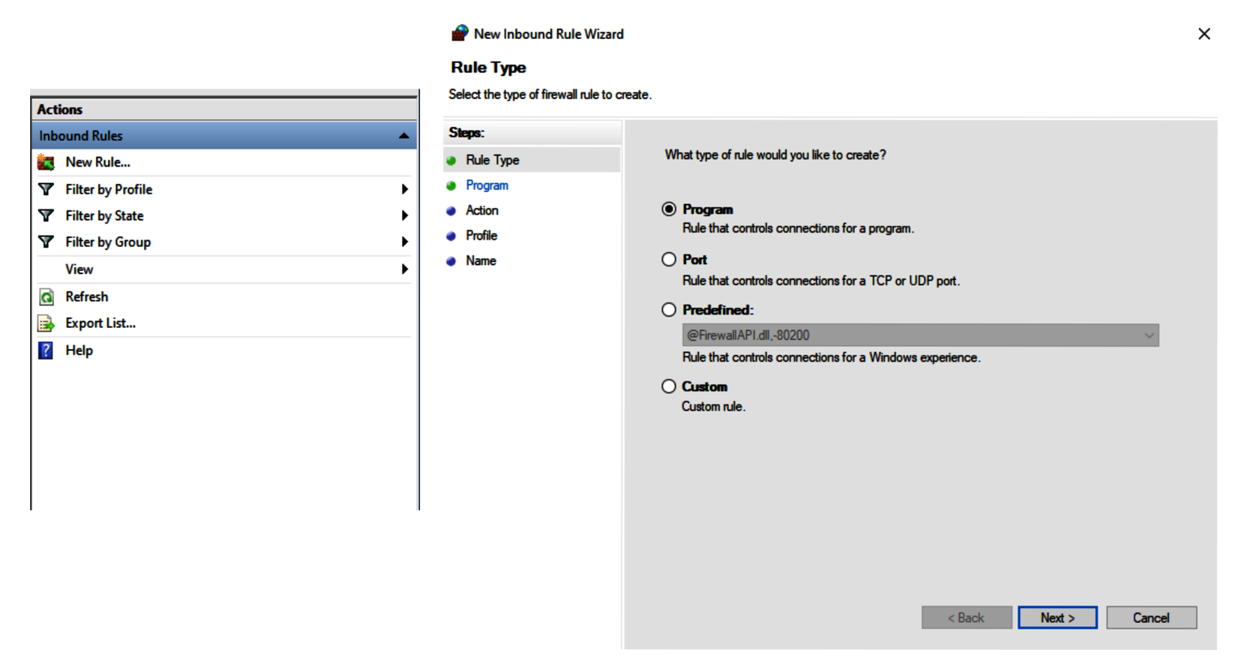
- Open the “Windows Defender Firewall with Advanced Security” application. Create a new incoming rule, adding a firewall exception for VNyan running on your private network. Allow transfer of both incoming and outgoing controller data.
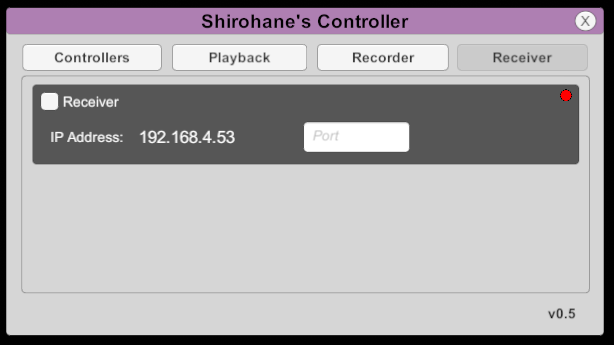
- Open the Shirohane Controller Plugin UI, and open the Receiver Tab. Using this interface, specify the port number that VNyan will receive incoming data from. (The Shirohane Controller Plugin will save and load the “SenderPort” and “diagnosticLog” settings to a ShirohaneController config file located in the “...\AppData\LocalLow\Suvidriel\VNyan” folder).
- Activating the “Shirohane Controller” Receiver will cause the Red Status circle to turn Yellow and start listening for incoming data from a “Shirohane Controller for Windows” client program.
Receiver triggers
Triggers can be used to control the receiver via node graphs.
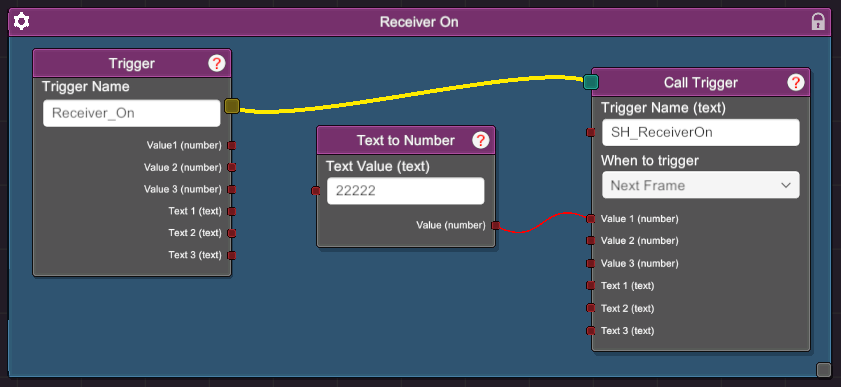
- The following node graph shows how to use the SH_ReceiverOn trigger to turn on the receiver. In this example a “Text to Number” node is used to pass the port number of 22222 to the receiver before turning it on.
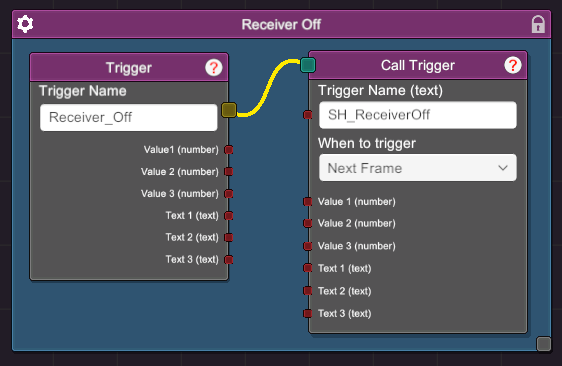
- SH_ReceiverOff trigger can be used to turn off the receiver.
- Once the receiver has been activated use the “SH_controllerOn” and “SH_mouseOn” to start the controller and mouse animations.